- Access and User Account
- I made a mistake in my email address when I signed up. How can I change it?
- When I try to access my account, I get the error message "Access denied".
- Must the email address in my user account be the same as my Adobe ID?
- Do I need a library card to borrow ebooks?
- Why am I asked for an email address when I first access the platform? Will this address be kept confidential?
- What should I do if I forgot my username, card number, or password?
- How long is the lending period for a borrowed audiobook?
- Do I have to connect using my Adobe account?
- Do I need an Internet connection?
- Can I return an audiobook before the end of the lending period? How do I do that?
- Which reading app should I use?
- Which device should I use?
- Does the reader remember my position in the book?
- Do I really need to create an Adobe ID?
- I reached the maximum of allowed authorizations with my Adobe ID. How can I reset my authorizations?
- He alcanzado mi límite de dispositivos autorizados con mi ID de Adobe. ¿Cómo puedo reinicializar mis activaciones?
- I forgot my Adobe ID or my password. How can I get it back?
- Can I convert a DRM-protected book into another format?
- Can I remove the DRM from a book?
- Can I use the same Adobe ID with multiple devices or applications?
- What's an Adobe ID?
- What is DRM?
- Are all the ebooks DRM-protected?
- What's the difference between an e-reader and a tablet?
- I don't have an e-reading device, such as an e-reader or a tablet. Can I still read ebooks?
- No tengo un dispositivo de lectura electrónico, ni un lector de libros ni una tablet. ¿Es necesario para leer libros digitales?
- Why can't I open the PDF file I downloaded with Adobe Reader?
- Which app do I need to install to read ebooks on my tablet or smartphone?
- Which e-readers and tablets are compatible with the platform's ebooks?
- ¿Qué lectores y tabletas son compatibles con los libros digitales y resto de contenido digital de la plataforma?
- What's the difference between the EPUB and PDF format?
- The ebook I downloaded is not a PDF or EPUB file, but an ACSM file. What is it, and what software should I use to open it?
- El libro digital que tomé prestado no es un archivo PDF o EPUB. Se llama ACSM. ¿Qué es este archivo? ¿Con qué software debo abrirlo?
- A lot of books are already checked out. Is there a way to search for available books only?
- Why are some commercially available ebooks not available on the platform?
- Why are some books only available in EPUB format and others only in PDF format? Why are they sometimes available in both formats? Which one should I choose?
- How long is the lending period for a borrowed ebook?
- How many ebooks can I have out and on hold at one time?
- Do I need to be connected to the Internet to read a borrowed ebook?
- I downloaded an ebook twice, and now, two copies of it appear in my library. Do they count for two different loans?
- The platform is telling me that I have a hold now available for loan, but I am not able to download the ebook.
- Why do I receive an email when I borrow a book from the platform?
- Why do I have to wait for a copy to be available to borrow it? Since the ebook is a digital file, couldn't it be loaned to multiple patrons at a time?
- Can I borrow books from anywhere, or do I have to be at my library?
- Can I borrow ebooks directly from my e-reader?
- Can I borrow Cantook Station's ebooks from outside the country?
- Can I renew my loan?
- What is a time-limited ebook?
- If I haven't finished the book when my loan is over, can I check it out again?
- Opening a Book
- Cuando descargo un libro digital en mi ordenador, éste no se abre en la aplicación correcta. ¿Cómo cambio la aplicación predeterminada?
- The ebook I borrowed and downloaded from Adobe Digital Editions cannot be transferred to my e-reader. An error message indicates that a permission problem is preventing the file from opening. How do I fix the problem?
- Error message: Oops! Unable to open this document. This document is protected by Adobe's Digital Rights Management (DRM) and cannot be opened with your Adobe ID. Log in with the authorized Adobe login and try again.
- I have multiple e-reading apps installed on my tablet. How can I choose which one will open the book I just borrowed?
- When I click on the Download button, nothing happens.
- When I try downloading an ebook by clicking on the link in the email, I get the following error message: "The loan activation failed. Please try again in a few minutes."
- It has been over 15 minutes since I borrowed an ebook and I have not received an email.
- How can I place a hold on a book?
- How will I know that the book I put on hold is available?
- How long do I have to download the book I put on hold?
- Where can I see a list of books I put on hold?
- Are there charges if I don't download the book I put on hold?
- I delete an ebook from my device, but the loan still appears as active in my account. How can I return the book?
- He borrado mi libro digital de mi dispositivo, pero en mi cuenta, el préstamo siempre aparece como activo. ¿Cómo puedo devolverlo?
- Why does the availability date for my holds keep changing?
- Can I cancel a hold I placed on a book?
- Can I return a book before the loan end date?
- Are holds now available for loans counted in the holds limit?
- Access and User Account
- I made a mistake in my email address when I signed up. How can I change it?
- When I try to access my account, I get the error message "Access denied".
- Must the email address in my user account be the same as my Adobe ID?
- Do I need a library card to borrow ebooks?
- Why am I asked for an email address when I first access the platform? Will this address be kept confidential?
- What should I do if I forgot my username, card number, or password?
- How long is the lending period for a borrowed audiobook?
- Do I have to connect using my Adobe account?
- Do I need an Internet connection?
- Can I return an audiobook before the end of the lending period? How do I do that?
- Which reading app should I use?
- Which device should I use?
- Does the reader remember my position in the book?
- Do I really need to create an Adobe ID?
- I reached the maximum of allowed authorizations with my Adobe ID. How can I reset my authorizations?
- He alcanzado mi límite de dispositivos autorizados con mi ID de Adobe. ¿Cómo puedo reinicializar mis activaciones?
- I forgot my Adobe ID or my password. How can I get it back?
- Can I convert a DRM-protected book into another format?
- Can I remove the DRM from a book?
- Can I use the same Adobe ID with multiple devices or applications?
- What's an Adobe ID?
- What is DRM?
- Are all the ebooks DRM-protected?
- What's the difference between an e-reader and a tablet?
- I don't have an e-reading device, such as an e-reader or a tablet. Can I still read ebooks?
- No tengo un dispositivo de lectura electrónico, ni un lector de libros ni una tablet. ¿Es necesario para leer libros digitales?
- Why can't I open the PDF file I downloaded with Adobe Reader?
- Which app do I need to install to read ebooks on my tablet or smartphone?
- Which e-readers and tablets are compatible with the platform's ebooks?
- ¿Qué lectores y tabletas son compatibles con los libros digitales y resto de contenido digital de la plataforma?
- What's the difference between the EPUB and PDF format?
- The ebook I downloaded is not a PDF or EPUB file, but an ACSM file. What is it, and what software should I use to open it?
- El libro digital que tomé prestado no es un archivo PDF o EPUB. Se llama ACSM. ¿Qué es este archivo? ¿Con qué software debo abrirlo?
- A lot of books are already checked out. Is there a way to search for available books only?
- Why are some commercially available ebooks not available on the platform?
- Why are some books only available in EPUB format and others only in PDF format? Why are they sometimes available in both formats? Which one should I choose?
- How long is the lending period for a borrowed ebook?
- How many ebooks can I have out and on hold at one time?
- Do I need to be connected to the Internet to read a borrowed ebook?
- I downloaded an ebook twice, and now, two copies of it appear in my library. Do they count for two different loans?
- The platform is telling me that I have a hold now available for loan, but I am not able to download the ebook.
- Why do I receive an email when I borrow a book from the platform?
- Why do I have to wait for a copy to be available to borrow it? Since the ebook is a digital file, couldn't it be loaned to multiple patrons at a time?
- Can I borrow books from anywhere, or do I have to be at my library?
- Can I borrow ebooks directly from my e-reader?
- Can I borrow Cantook Station's ebooks from outside the country?
- Can I renew my loan?
- What is a time-limited ebook?
- If I haven't finished the book when my loan is over, can I check it out again?
- Opening a Book
- Cuando descargo un libro digital en mi ordenador, éste no se abre en la aplicación correcta. ¿Cómo cambio la aplicación predeterminada?
- The ebook I borrowed and downloaded from Adobe Digital Editions cannot be transferred to my e-reader. An error message indicates that a permission problem is preventing the file from opening. How do I fix the problem?
- Error message: Oops! Unable to open this document. This document is protected by Adobe's Digital Rights Management (DRM) and cannot be opened with your Adobe ID. Log in with the authorized Adobe login and try again.
- I have multiple e-reading apps installed on my tablet. How can I choose which one will open the book I just borrowed?
- When I click on the Download button, nothing happens.
- When I try downloading an ebook by clicking on the link in the email, I get the following error message: "The loan activation failed. Please try again in a few minutes."
- It has been over 15 minutes since I borrowed an ebook and I have not received an email.
- How can I place a hold on a book?
- How will I know that the book I put on hold is available?
- How long do I have to download the book I put on hold?
- Where can I see a list of books I put on hold?
- Are there charges if I don't download the book I put on hold?
- I delete an ebook from my device, but the loan still appears as active in my account. How can I return the book?
- He borrado mi libro digital de mi dispositivo, pero en mi cuenta, el préstamo siempre aparece como activo. ¿Cómo puedo devolverlo?
- Why does the availability date for my holds keep changing?
- Can I cancel a hold I placed on a book?
- Can I return a book before the loan end date?
- Are holds now available for loans counted in the holds limit?
- Access and User Account
- I made a mistake in my email address when I signed up. How can I change it?
- When I try to access my account, I get the error message "Access denied".
- Must the email address in my user account be the same as my Adobe ID?
- Do I need a library card to borrow ebooks?
- Why am I asked for an email address when I first access the platform? Will this address be kept confidential?
- What should I do if I forgot my username, card number, or password?
- How long is the lending period for a borrowed audiobook?
- Do I have to connect using my Adobe account?
- Do I need an Internet connection?
- Can I return an audiobook before the end of the lending period? How do I do that?
- Which reading app should I use?
- Which device should I use?
- Does the reader remember my position in the book?
- Do I really need to create an Adobe ID?
- I reached the maximum of allowed authorizations with my Adobe ID. How can I reset my authorizations?
- He alcanzado mi límite de dispositivos autorizados con mi ID de Adobe. ¿Cómo puedo reinicializar mis activaciones?
- I forgot my Adobe ID or my password. How can I get it back?
- Can I convert a DRM-protected book into another format?
- Can I remove the DRM from a book?
- Can I use the same Adobe ID with multiple devices or applications?
- What's an Adobe ID?
- What is DRM?
- Are all the ebooks DRM-protected?
- What's the difference between an e-reader and a tablet?
- I don't have an e-reading device, such as an e-reader or a tablet. Can I still read ebooks?
- No tengo un dispositivo de lectura electrónico, ni un lector de libros ni una tablet. ¿Es necesario para leer libros digitales?
- Why can't I open the PDF file I downloaded with Adobe Reader?
- Which app do I need to install to read ebooks on my tablet or smartphone?
- Which e-readers and tablets are compatible with the platform's ebooks?
- ¿Qué lectores y tabletas son compatibles con los libros digitales y resto de contenido digital de la plataforma?
- What's the difference between the EPUB and PDF format?
- The ebook I downloaded is not a PDF or EPUB file, but an ACSM file. What is it, and what software should I use to open it?
- El libro digital que tomé prestado no es un archivo PDF o EPUB. Se llama ACSM. ¿Qué es este archivo? ¿Con qué software debo abrirlo?
- A lot of books are already checked out. Is there a way to search for available books only?
- Why are some commercially available ebooks not available on the platform?
- Why are some books only available in EPUB format and others only in PDF format? Why are they sometimes available in both formats? Which one should I choose?
- How long is the lending period for a borrowed ebook?
- How many ebooks can I have out and on hold at one time?
- Do I need to be connected to the Internet to read a borrowed ebook?
- I downloaded an ebook twice, and now, two copies of it appear in my library. Do they count for two different loans?
- The platform is telling me that I have a hold now available for loan, but I am not able to download the ebook.
- Why do I receive an email when I borrow a book from the platform?
- Why do I have to wait for a copy to be available to borrow it? Since the ebook is a digital file, couldn't it be loaned to multiple patrons at a time?
- Can I borrow books from anywhere, or do I have to be at my library?
- Can I borrow ebooks directly from my e-reader?
- Can I borrow Cantook Station's ebooks from outside the country?
- Can I renew my loan?
- What is a time-limited ebook?
- If I haven't finished the book when my loan is over, can I check it out again?
- Opening a Book
- Cuando descargo un libro digital en mi ordenador, éste no se abre en la aplicación correcta. ¿Cómo cambio la aplicación predeterminada?
- The ebook I borrowed and downloaded from Adobe Digital Editions cannot be transferred to my e-reader. An error message indicates that a permission problem is preventing the file from opening. How do I fix the problem?
- Error message: Oops! Unable to open this document. This document is protected by Adobe's Digital Rights Management (DRM) and cannot be opened with your Adobe ID. Log in with the authorized Adobe login and try again.
- I have multiple e-reading apps installed on my tablet. How can I choose which one will open the book I just borrowed?
- When I click on the Download button, nothing happens.
- When I try downloading an ebook by clicking on the link in the email, I get the following error message: "The loan activation failed. Please try again in a few minutes."
- It has been over 15 minutes since I borrowed an ebook and I have not received an email.
- How can I place a hold on a book?
- How will I know that the book I put on hold is available?
- How long do I have to download the book I put on hold?
- Where can I see a list of books I put on hold?
- Are there charges if I don't download the book I put on hold?
- I delete an ebook from my device, but the loan still appears as active in my account. How can I return the book?
- He borrado mi libro digital de mi dispositivo, pero en mi cuenta, el préstamo siempre aparece como activo. ¿Cómo puedo devolverlo?
- Why does the availability date for my holds keep changing?
- Can I cancel a hold I placed on a book?
- Can I return a book before the loan end date?
- Are holds now available for loans counted in the holds limit?
Android (Google) tablets and smartphones
To read an ebook borrowed from your library on a tablet or smartphone that uses Google's Android operating system, follow these steps.

Here are some tablet brands that use Google's Android operating system: Acer Iconia, ASUS ZenPad, Google Nexus et Pixel, Huawei MediaPad, Lenovo Tab, LG G Pad, Samsung Galaxy Tab.
Here are some phone manufacturers that use Google's Android operating system: Acer, Alcatel, Archos, Asus, Google, HTC, Huawei, Lenovo, LG, Meizu, Motorola, Nokia, Oppo, Panasonic, Samsung, Sony, Vodafone, ZTE.

If your tablet or smartphone uses the iOS mobile operating system instead, go to the Reading Applications section.
Using the mobile application
The mobile application allows you to browse, borrow and read ebooks from your library all within the application itself. No file transfer is required. It supports Licensed Content Protection (LCP) DRM and not the Adobe Content Server (ACS) DRM to protect ebook files. No Adobe ID is required to use it.
While the vast majority of ebooks are protected by LCP, some ebooks, due to their format or the distributor that supplies them, are protected by ACS. In such cases, you will need to use another application to read them (see Reading with another application).
Step 1. Install the mobile application
First, install the mobile app.
- Go to the application page on Google Play.
- Tap "Install."
- Once the installation is complete, tap "Open" to start the application.
Step 2. Connect to Your Library
To borrow ebooks, you will first need to add your library to the application.
- Go to the "Catalogs" section.
- Tap the "+" button.
- Find your library by browsing the list.
- Tap the "+" icon to the right of your library's name to add it to your catalog.
- Press "Browse" in the rectangle that contains your library's name in the Catalogs section.
- Authenticate yourself with your library account ID and password.
Please note that authentication systems vary from library to library. Depending on the system used by your library, you may not be required to authenticate when you add a catalog. This will only need to be done later when making a loan or reservation. If you encounter a problem during the authentication process (for example, if you have forgotten your password), please contact your library.
Step 3. Browsing Your Library's Catalogue
Now that you have added your library, you can browse through its catalogue.
- Tap "Browse" in the rectangle that contains your library's name in the Catalogs section of the application.
- Go to your library's home page.
- Navigate through the catalogue from the home page or the "Browse" menu, or tap the magnifying glass to search by keyword.
- Tap on the cover image of a book to access its detailed record.
Explore
Your library's home page gives you quick access to the latest releases added to the catalogue, the most popular ebooks, as well as different sections put forward by your library. You can also use the "Browse" menu:
- Ebooks: Tap to browse the digital book collection.
- Audiobooks: Tap to browse the Audio Book Collection.
- Thematic Selections: Tap to browse and view book selections created by your library.
- Categories: Tap to browse the different categories of books offered by your library.
- Available Now: Click to only see titles that are currently available now and immediately available to borrow from your library's collection of recent additions.
Step 4. Borrow an Ebook
Should you find a book that interests you while browsing through your library's catalogue, click on its cover image. You will have access to the detailed record of this book. This record contains various information about the publication (such as format, language, publisher, date of publication, and more), a summary and, if applicable, other titles by the same author and publisher in your library's catalogue.
Borrow
If the book is available, you will see a "Borrow" button.
- Tap the "Borrow" button.
- Tap the "Read" button once the borrowing process is complete to begin reading. You can also access the book in the "Home" and "My Books" sections of the application.
Placing a Hold
If the book you wish to borrow is not available, the "Place Hold" button will be displayed instead of the "Borrow" button.
- Tap the "Press Hold" button to place a reservation.
- In the confirmation window, take note of the estimated date on which the ebook will become available.
- When the ebook you have reserved becomes available, you will receive an email notification.
- Tap on the cover image of the book from the "Home" or "My Books" section of the application.
- Tap the "Download" button to activate your loan.
If you do not open the ebook within your library's specified timeframe to activate the loan, the ebook will vanish and become available to the next user on the waiting list.
Read an Excerpt
You can read a short excerpt from an ebook, regardless of its availability.
- Press the "Free Excerpt" button.
- Press the "Read Excerpt" button once the download is complete to start reading. You can also access the ebooks excerpts in the "Home" and "My Books" sections of the application.
Downloaded excerpts do not have an expiry date. They will remain on your device until you decide to delete them.
Step 5. Read an Ebook
You can access the ebooks you have borrowed by going to the "Home" or "My Books" section of the application.
The "Home" section organizes your ebooks into different lists:
- Expires soon: contains ebooks whose loans will expire in the next seven days.
- In progress: contains the books and excerpts that have been downloaded and opened in the application.
- Recently added: contains ebooks and excerpts that have been downloaded to the application but not yet opened.
- [Library name]: Contains ebooks that you have borrowed or reserved at the library added to the application.
The "My Books" section displays all your ebooks. Press on the inverted pyramid icon that appears next to the magnifying glass to filter your ebooks according to different criteria or to modify display and sorting options.
Read an Ebook
Tap on the cover image of the ebook you want to read in the "Home" or "My Books" section of the application. If this is the first time reading this ebook, it will open on the first page. If you already started it, it will open on the last page you read.
To turn the page, swipe from left to right or tap on the left or right side of the page.
Track your reading progress and use the reading and display functions as needed. To do this, tap the middle of the page to bring up the menu:
Listen to an Audiobook
- Tap the cover image of the audiobook you want to listen to in the "Home" or "My Books" section of the application. If this is the first time you are listening, it will open at the beginning of the audiobook. If you already started it, it will resume where you left off.
- Tap the "Pause" button to stop playback if necessary. Tap the "Play" button to resume playback.
- Follow your playback progress. A first bar displays your progress for the entire audiobook, while a second one displays your progress within the current audio track. An audiobook is typically made up of several audio tracks.
Use the playback functions as needed:
 Timer: Tap to activate a timer so that audiobook playback will automatically stop at a set time.
 Skip back: Tap to go back 30 seconds.
 Skip Forward: Tap to advance 30 seconds.
 Speed: Tap to slow down or speed up playback speed.
 Back: Tap to go back within the application.
 Table of Contents: Tap to access the book's table of contents and your bookmarks.
 Bookmark: Tap to add a bookmark at any time on the currently playing audio track.
An Internet connection is required to listen to an audiobook.
Returning a Loan Early
- In the "Home" or "My Books" section of the application, long-press the cover image of the book you want to return to the "Home" or "My Books" section of the application until a modal window appears.
- Tap on "Advance return."
- Confirm your choice by tapping on "Advance return" in the pop-up confirmation window.
Read with Another Application
If you prefer to use another application to read an ebook borrowed from your library on your tablet or smartphone, you can do so. You need to download the borrowed ebook file from the web interface and then open it with your e-reading application. An Adobe ID is also required. Follow the steps below for instructions.
The reading application used must be compatible with EPUB and PDF formats and must be able to read files protected by Digital Rights Management (DRM). See the Compatible Devices and Applications section for a list of compatible applications.
The following procedure presents the PocketBook Reader application, but the instructions are essentially the same if you are using another reading application that supports ACS.
Digital Rights Management, or DRM for short, is a security measure integrated into an ebook designed to protect it from copyright infringement. It controls various parameters in regards to digital lending, including its duration. Two types of DRM are used for digital lending.
To read an ebook protected by the Adobe Content Server DRM, or ACS for short, you must have an Adobe account (available for free) and use a compatible reading application (see Compatible Devices and Applications).
The Licensed Content Protection DRM (LCP) is an open solution developed by the Readium Foundation, a group of more than 80 members of the publishing industry. If you are using on your iOS or Android mobile device, it is this DRM that is used.
An Adobe ID is a free account that allows you to open DRM secured ebooks and view them on multiple devices. Each device must be authorized with the same Adobe ID to be read on multiple devices.
Step 1. Create an Adobe ID
If you already have an Adobe ID, skip this step and head to Step 2. Install PocketBook Reader.
An Adobe ID is a free account that allows you to open ebooks protected by ACS. This DRM controls various parameters of e-lending, such as loan duration.
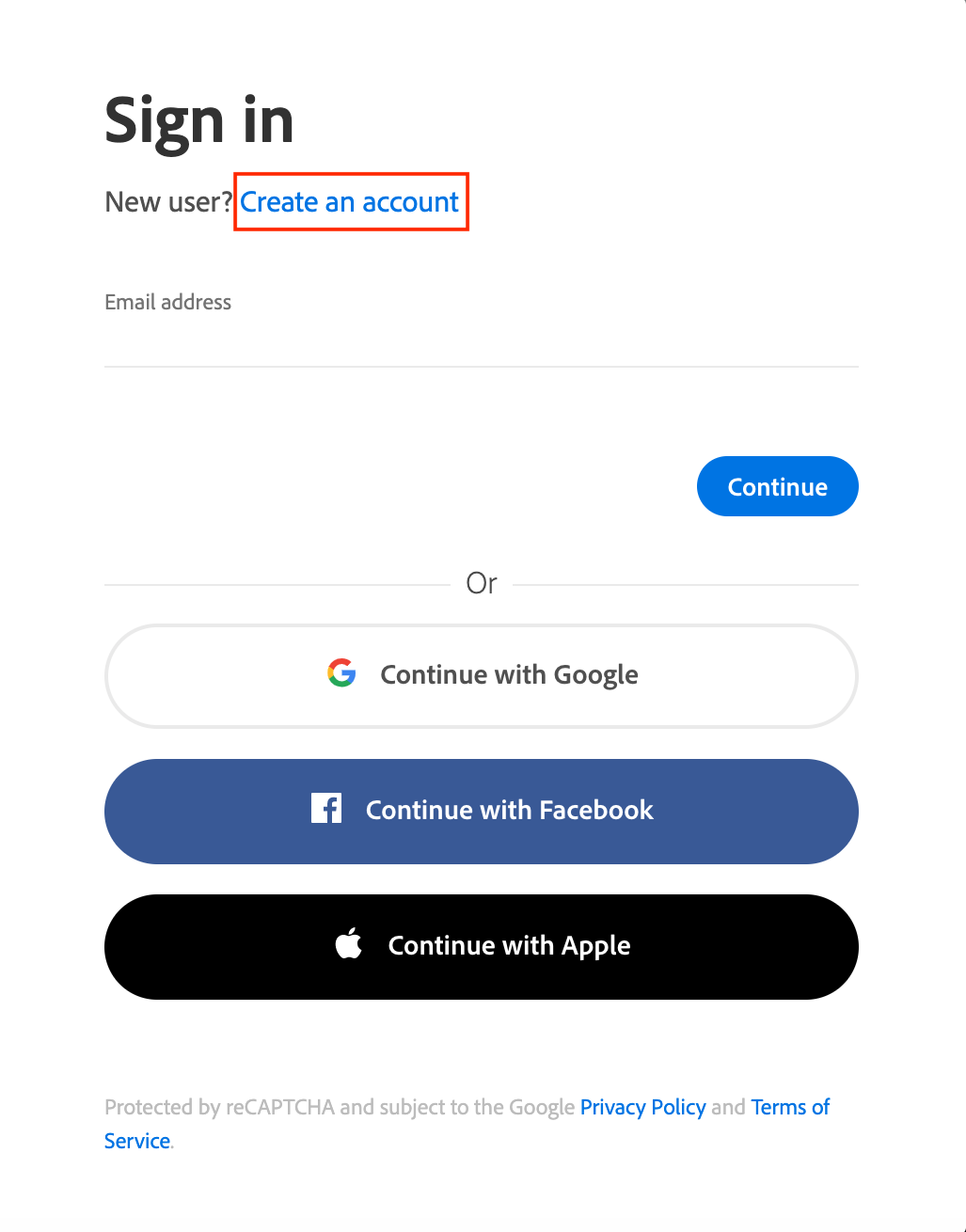
- Go to the Adobe login page at https://account.adobe.com/.
- Click on "Create an account".
- Fill out the form and jot down the email address and password you used to sign up. Read the terms of use and click "Create an Account."
Your Adobe ID is the email address with which you signed up. Please remember to write it down along with the password you chose. This information will be required to configure all applications and devices that require an Adobe ID to read ebooks.
Step 2. Install the PocketBook Reader Application
If you have already installed the e-reader application and entered your Adobe ID, skip to Step 4. Borrow and Download an Ebook.
Install the PocketBook Reader application.
- Access the PocketBook Reader application page on Google Play: https://play.google.com/store/apps/details?id=com.obreey.reader.
- Tap "Install."
- Once the installation is complete, tap "Open" to launch the application.
Please note that the PocketBook Reader application does not allow early returns of borrowed ebooks. The ebook will automatically be returned at the end of the borrowing period. The application also does not support audiobooks borrowed from your library
Step 3. Enter Your Adobe ID in the E-Reading Application
To read ebooks borrowed from your library, you must enter your Adobe ID in the PocketBook Reader application.
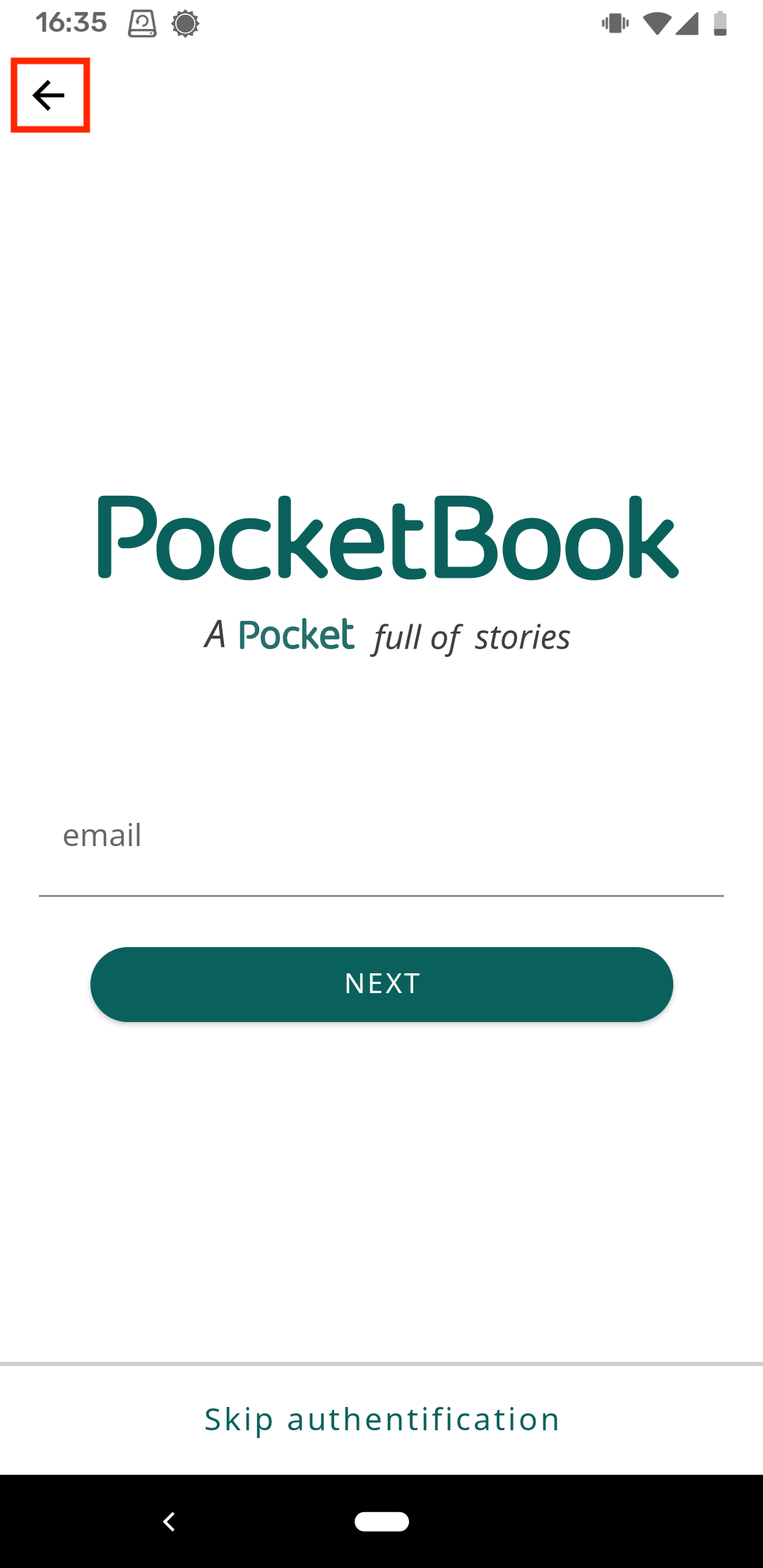
- From the application's home screen, ignore the email request and tap the return icon in the upper left corner of your screen.
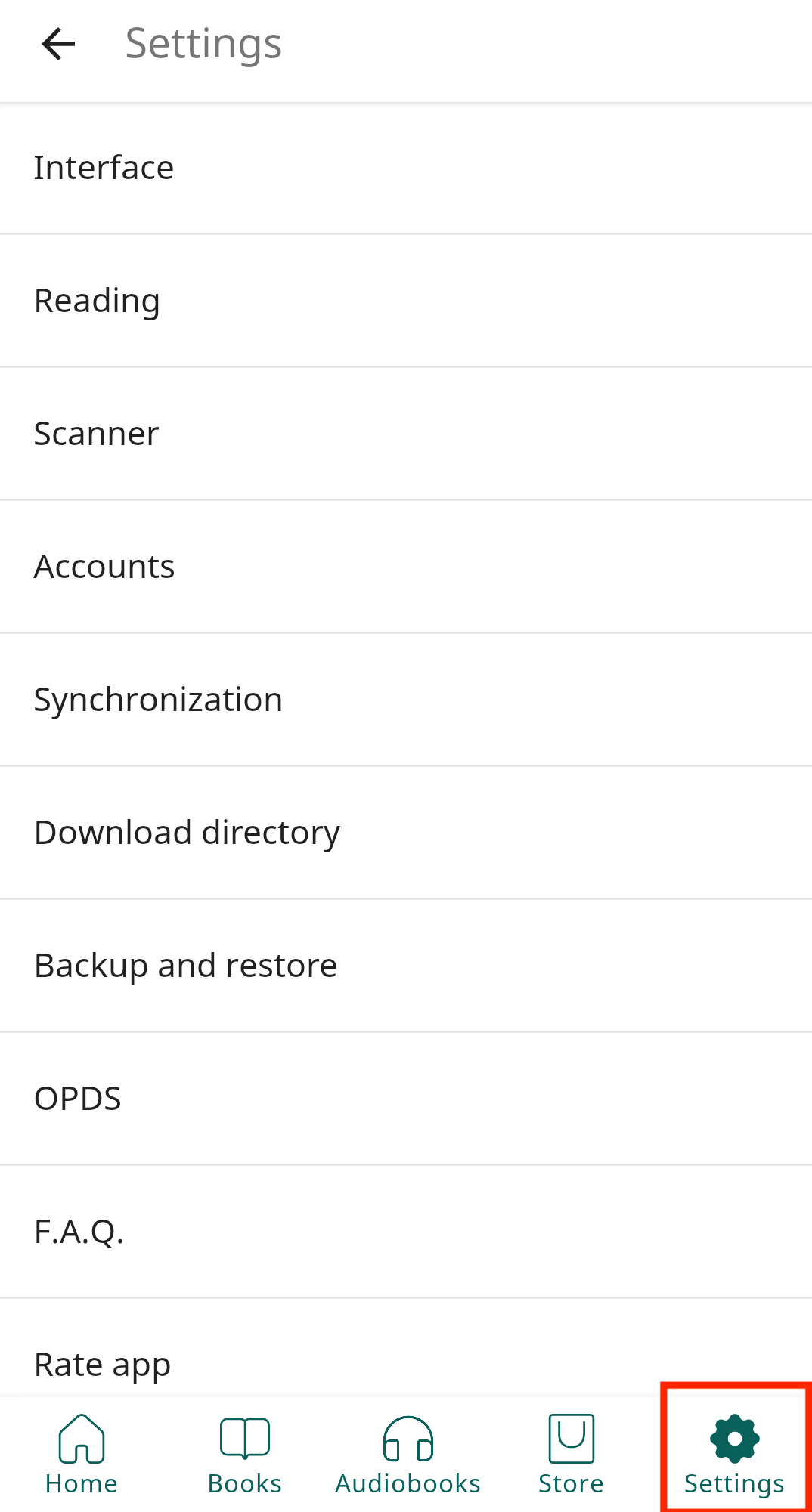
- Go to the "Settings" section.
- Tap "Accounts."
- Tap "Adobe DRM."
- Enter the email address and password used in Step 1. Create an Adobe ID.
- Tap "Log in."
Your application is configured to read ebooks borrowed from your library. You will not need to repeat the previous steps.
Step 4. Borrow and Download an Ebook
Visit your library via your device's Web browser.
- In your device's Web browser, browse your library's catalogue to find the book you want to borrow.
- In the search results page or the book's detailed record, press the "Borrow" button.
- Press the "Confirm Borrowing" button.
- Press the "Download" button to download the digital book file. You can also download this file by following the link sent to you by email or in the "Borrowing and Reservations" section of your profile.
The downloaded file will have a .acsm extension due to the DRM.
Step 5. Open the Ebook in the E-Reading Application
Now that the PocketBook Reader application is configured on your device, you can open the ebook you borrowed from this application.
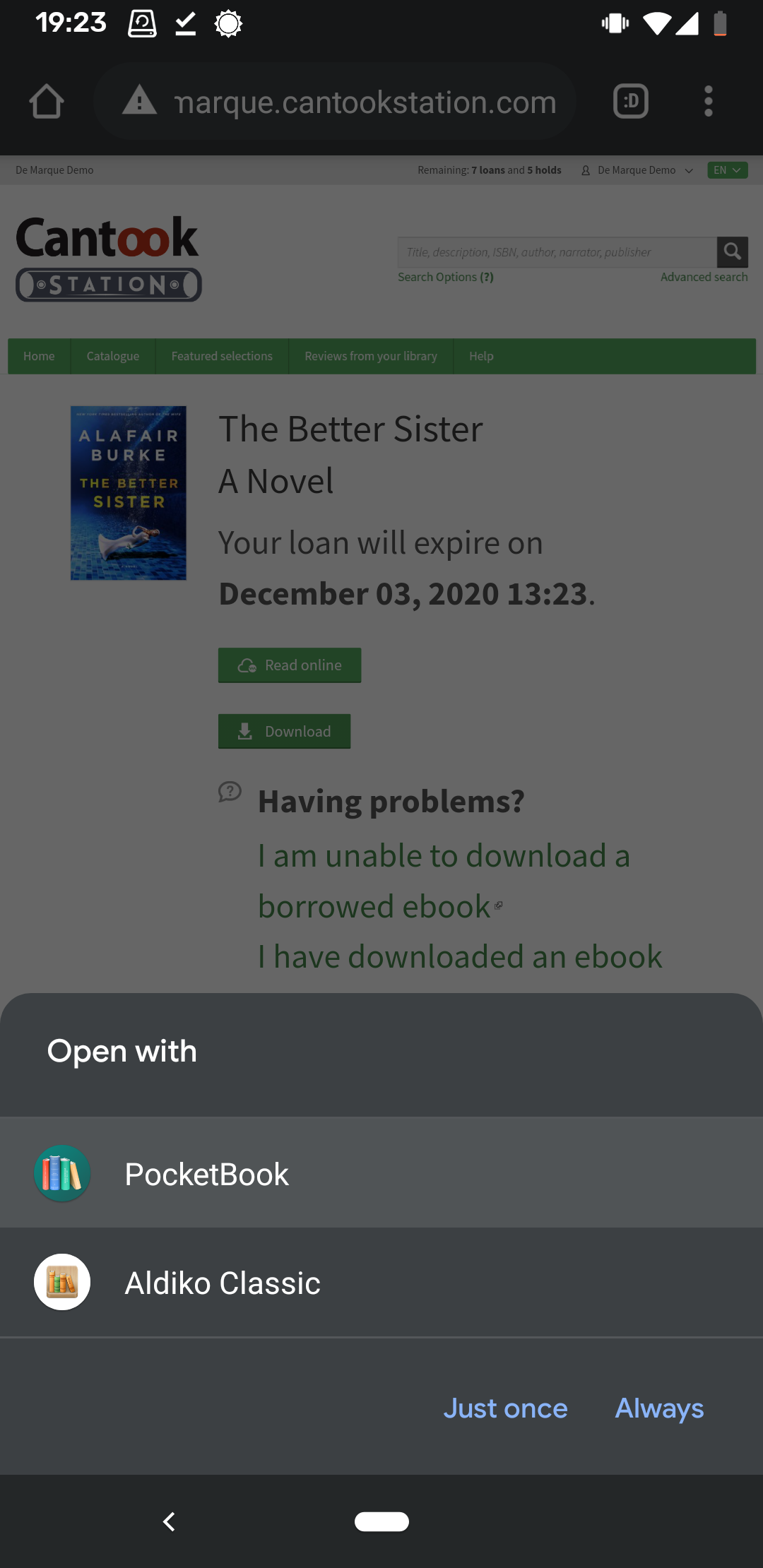
- Once the ebook is downloaded, a display will ask you to open the file with the .acsm extension. Press "Open."
- If the PocketBook Reader application is not selected by default, select it.
- Press "Always" if you want all ebooks to open in this application in the future. Otherwise, press "Once" to open the ebook in the PocketBook Reader application this one time.